Lesson 1 of 8
Meet Wick Editor
Create your first project and learn to save an editable animation.
Wick Editor studio
Open Wick Editor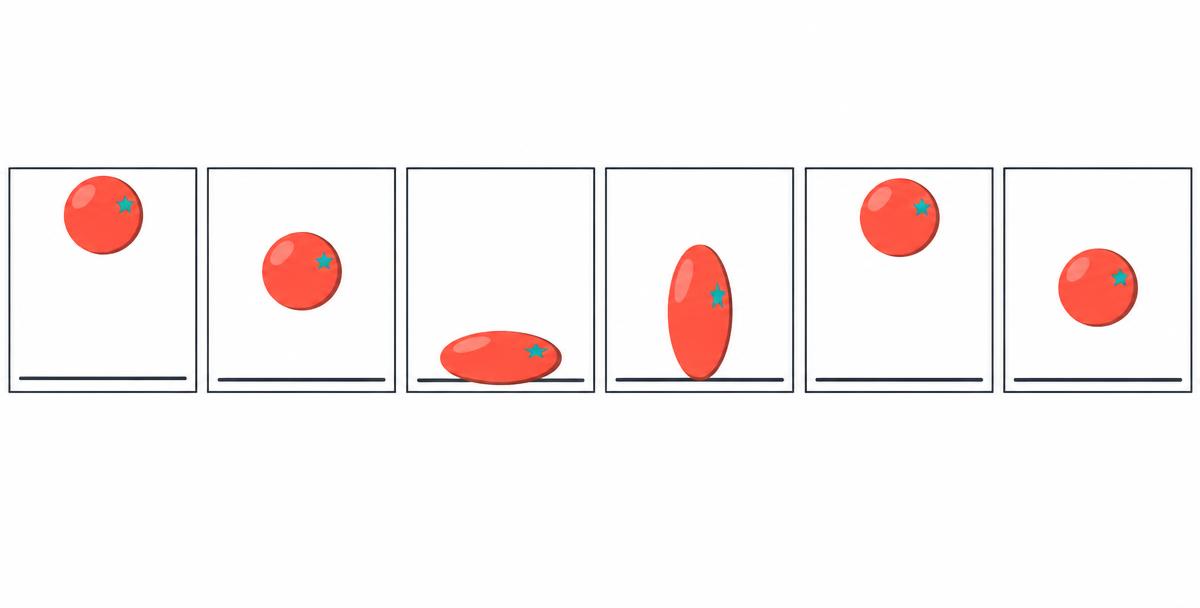
Learn it
Animation makes still drawings appear to move when we play them in sequence. Wick Editor is a free browser-based tool for drawing, animation and interactive projects. We will use it to make a short animated film.
Open the official editor in a separate tab so you can switch between your lesson and your project. A laptop or desktop with a mouse is easiest for drawing and the timeline. Follow your school’s software and website rules.
Save an editable .wick project to your school-approved folder before closing the editor. Do not assume that closing the browser will keep your work. CodeQuest records lesson progress and written reflections, not your animation files.
Key terms
- Canvas
- The visible drawing area.
- Timeline
- Frames arranged in playback order.
- Playhead
- The position currently displayed in the timeline.
- Project file
- An editable .wick copy of your work.
Make it in Wick Editor
- 1Set up: Open Wick Editor, create a project and choose practice settings.
- 2Draw: Use a drawing tool to create a simple character or ball.
- 3Save: Save a named .wick project in an approved folder.
- 4Check: Reopen your saved project and confirm the drawing is present.
Try it
Match each workspace item to its job.
Challenge
Create and save a Wick project containing an original character or object. Reopen it, then write where you saved it and what each of the canvas, timeline and playhead does.
Pick whichever way suits you — every mode earns the same bonus XP.
Write at least 40 more characters to submit.
Mark your own work
Guided walkthrough — 0/2 clues revealed
- Clue 1 locked — reveal it only if you get stuck.
- Clue 2 locked — reveal it only if you get stuck.
Each clue costs 3 XP (never below 13 XP). You'd earn 25 XP right now.